Ledge Journal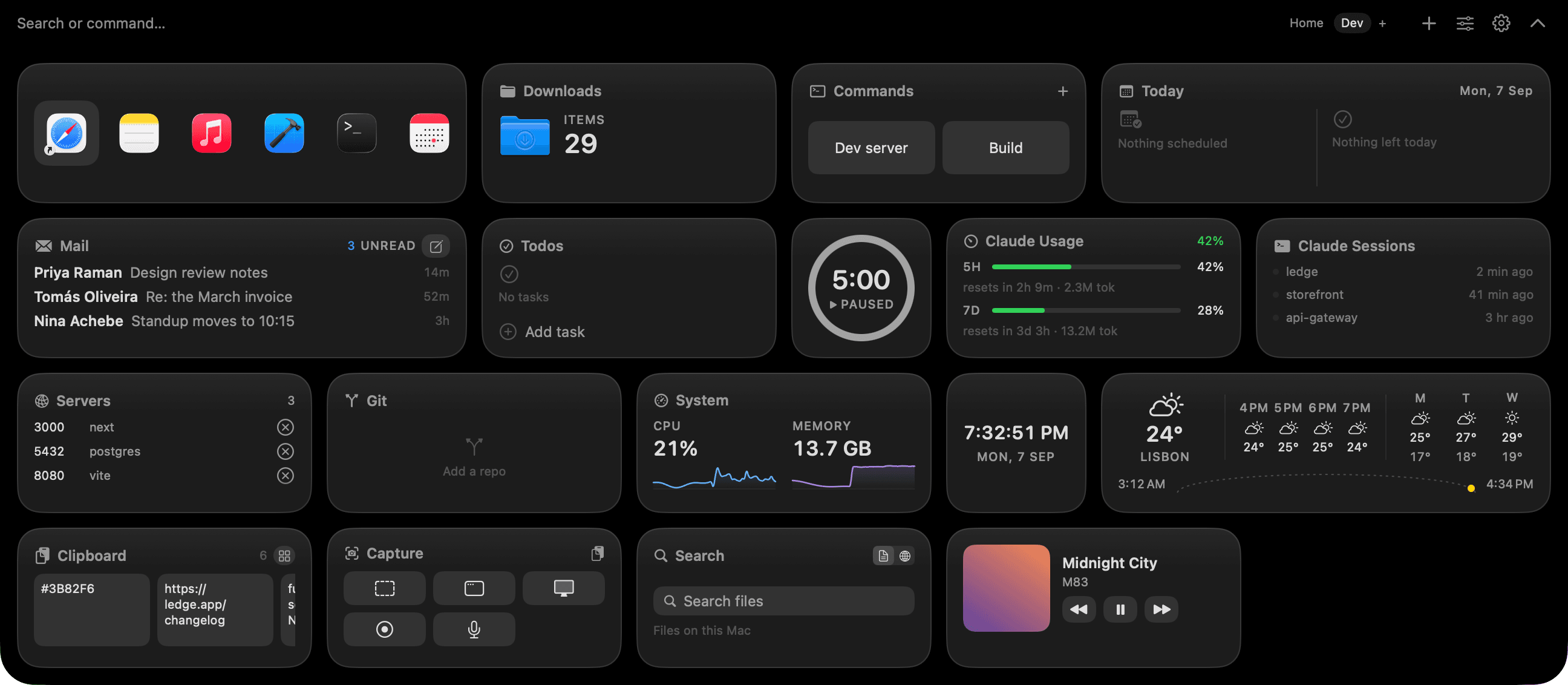

Two weeks before we shipped Ledge 1.0, one of us lost an afternoon to a port left running in the background. pnpm dev on 3000, a leftover next dev from the morning also on 3000, and about forty minutes of "why isn't my change showing up." The port widget we'd built a month earlier would have caught it in one glance. That's the tone of this post: developer widgets in the notch aren't glamorous, they just save the small stupid mistakes.
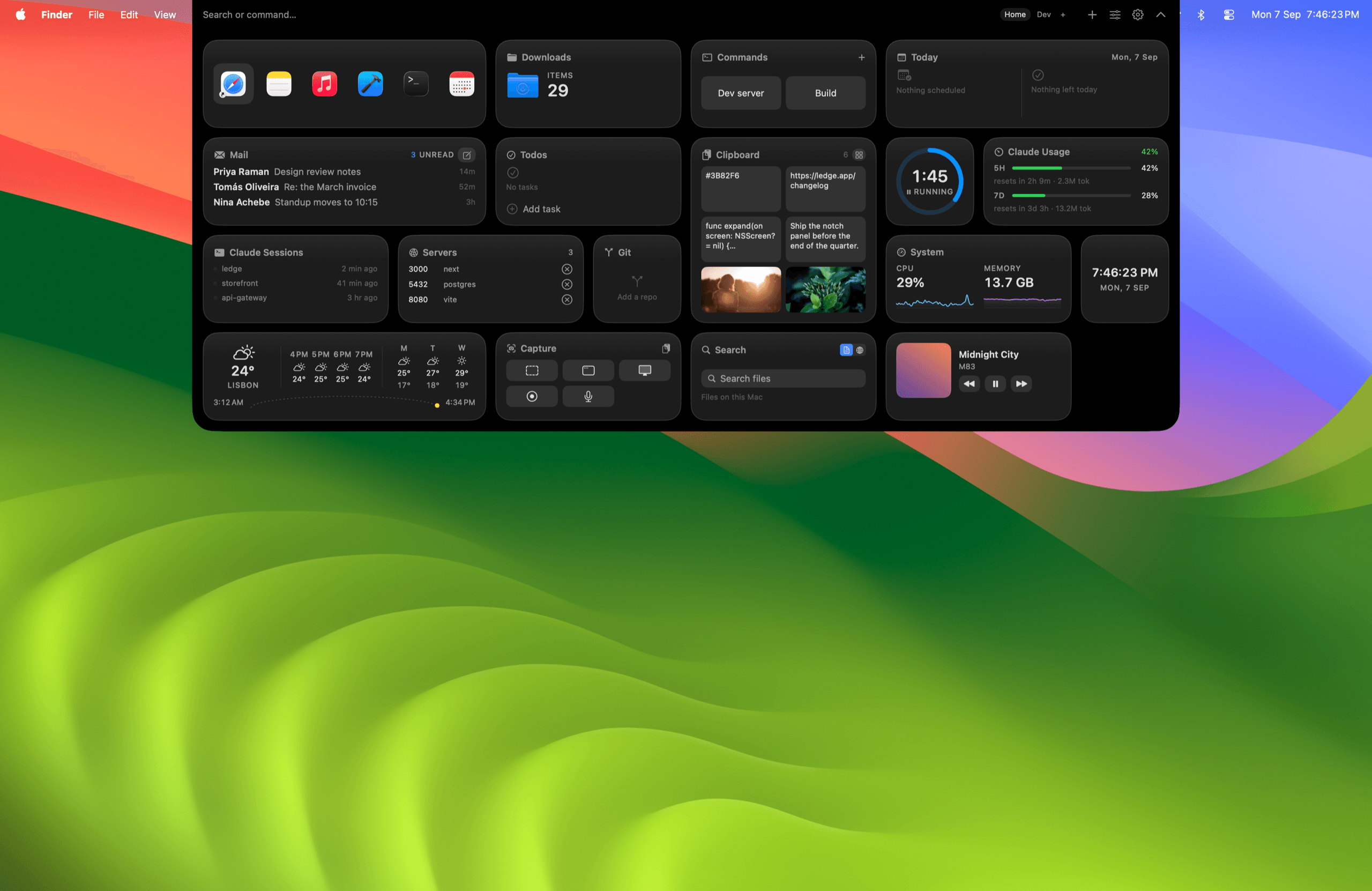
Most MacBook notch apps are built for Now Playing and file shelves. A smaller group targets developers: git status for the repo you have open, the ports currently in use, terminal shortcuts, small system-stat graphs. All in a panel that unrolls when you push the cursor into the notch. Below is what those widgets are actually worth, which apps ship them today, and what we keep out of the notch entirely.
What "developer widgets" means in the notch
A developer widget is a small, glanceable readout of state you check between builds. Not a terminal, not an IDE panel. Those want a full window. The notch is for the questions you ask five times an hour: what branch am I on, is anything uncommitted, what ports are bound, how much memory does the build machine have left, where am I in this Claude session.
If a widget needs scrolling or configuration to be useful, it doesn't belong in a collapsing panel. If it answers a one-glance question, it does.
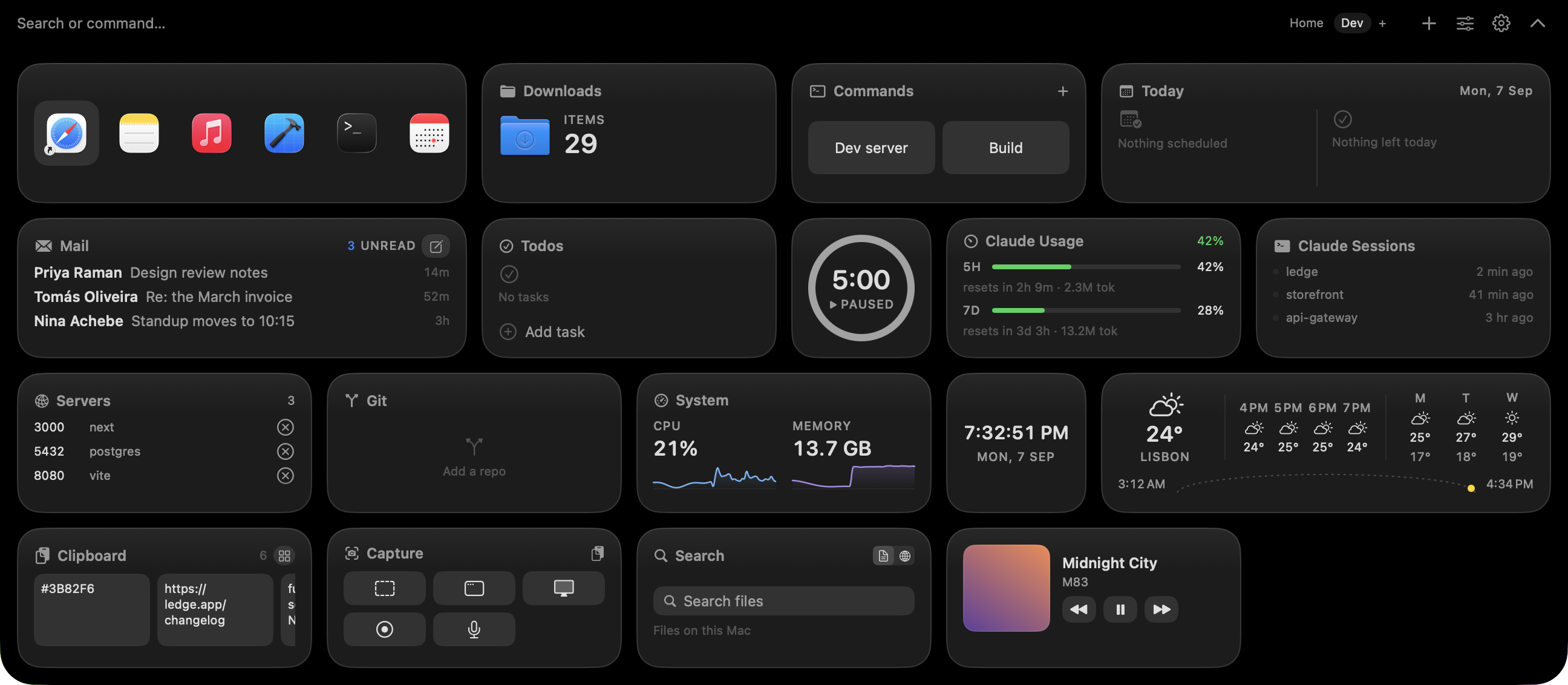 The Developer page. Git, ports, shortcuts, Claude usage. Everything we'd otherwise Cmd-Tab to check.
Git status is the highest-value widget
Command-Tab to a terminal, git status, read, come back. That workflow costs you a context switch every single time. A git widget in the notch shows the current branch, ahead/behind, and dirty file count in the same gesture you use to check the clock.
What a good notch git widget shows:
- Current branch name.
- Ahead/behind origin (arrows or numbers).
- Modified, staged, and untracked file counts.
- Optional: repo name or path so you know which repo the widget is watching in a monorepo setup.
What it shouldn't try to be: a diff viewer, a merge tool, or a commit interface. Those live in your editor or a dedicated GUI. We reach for Fork when anything needs a real diff view.
Ports and processes
lsof -i -P returns the answer to "what's on port 3000." A notch widget puts that answer on-screen without the command.
The ports widget lists the local ports currently in use with the process behind each one. When two dev servers fight over the same port, you see it before the terminal does (see: the lost afternoon above). Killing a rogue process from the widget saves the ps aux | grep | awk dance.
Docker container ports show up here too, because Docker maps them onto the host. The widget sees the host ports the same as any other listening process.
Terminal shortcuts (not a terminal)
Terminal-shortcut widgets store commands you name and run with a click: pnpm dev, docker compose up -d, the migration script whose flags you can never remember. It's not a REPL and it doesn't replace your shell history. It replaces the sticky note on your monitor with the eight commands you type ten times a day.
This is one of the widgets that pays for itself in a week. Every command you saved is a command you never mistyped again.
AI coding session widgets
Claude Code, Copilot, and Cursor now show up as widgets in a handful of notch apps. The value is knowing where you are in a session, how much context you have left, before the bar turns red and the model starts summarizing.
Two notes on privacy here. The "AI usage tracking" some notch apps offer varies in what it reads and where it sends data. Notchy advertises AI-usage tracking for Claude, Copilot, and Cursor; MacNotch mentions a Claude Code session monitor and GitHub/GitLab/Bitbucket PR widgets. Check what each app reads and whether it stays local before you install. Ledge tracks Claude usage locally and has no server. The model there is that developer-facing data never leaves the Mac, because we don't want it either.
System stats: CPU, memory, network
Small live graphs for CPU, memory, and network use are almost too obvious to mention. A build hangs, you glance up, is it CPU-bound, memory-swapping, or waiting on a package fetch. The graphs answer it.
If you monitor these continuously (running a build server, watching a bug), a menu-bar tool like iStat Menus is a better home because it stays visible all the time. For occasional glancing, the notch is fine.
Apps that ship developer widgets today
Not exhaustive, and features change. Verify on each app's site before buying.
| App | Developer widgets it ships | Model |
|---|---|---|
| Ledge | git status, ports, terminal shortcuts, Claude usage, system stats, clipboard, scratchpad | $25 one-time (1 Mac) |
| Notchy | Clipboard, Pomodoro, AI-usage tracking for Claude / Copilot / Cursor, OCR, window snapping | Free, donation-supported |
| Boring Notch | Media, calendar, file shelf, HUDs. No dedicated git/ports widgets in the base repo | Free, open source (GPL-3.0) |
| MacNotch | Weather, calendar, Pomodoro, system monitor, Claude Code session monitor, GitHub/GitLab/Bitbucket PR widget | Free trial plus paid tiers (macnotch.io) |
| Itchy | 12+ modules including Pomodoro, calendar, clipboard, notes. Custom Swift/SwiftUI module SDK for building your own | Free, SDK is open source |
Itchy is the outlier. It exposes a module SDK so you can write a Swift widget that runs in the notch. If you want a widget nobody ships (say, a specific CI status readout), Itchy is where you write it yourself. We looked hard at going the SDK route before deciding to build a full app; if you're the sort of person who'd rather ship your own widget than wait for someone else's, start there.
What to leave out of the notch
Not everything belongs there. Things we keep out:
- A terminal. The notch isn't tall enough for real terminal work. Use Ghostty, iTerm2, or Terminal.app.
- Log tailing. Watching a scrolling log in a collapsing panel is uncomfortable. Real window.
- Diffs. Same reason. Reading changes needs space and needs to stay open.
- Long CI output. A CI status widget that shows the last build result is useful. Streaming build logs is not.
- Secrets on screen. A panel that unrolls on hover isn't a secure surface. Keep tokens in your password manager, not the scratchpad.
- Persistent monitoring you can't afford to miss. Alerts that must be seen belong in a menu-bar icon or a notification, not a hover-triggered panel.
What to check when you install one
Two things worth confirming before you commit.
- Notarization. Some notch apps aren't notarized by Apple (Ledge included, at the time of writing). macOS shows a Gatekeeper warning on first launch and you need to click Open Anyway in System Settings, Privacy & Security. It's a trust step, not a bug. Homebrew's cask policy is tightening around this from September 2026 onward, so expect casks for non-notarized apps to get harder to publish.
- What data leaves the Mac. For developer widgets specifically. Git widgets that read your working directory are usually local; AI-usage widgets vary. Read the app's privacy page before you install.
What we'd do
If you're only going to add one, add the git widget. It pays for itself in a week and it's the widget we miss most on a Mac without Ledge on it. Ports second, terminal shortcuts third. Everything else is nice to have.
FAQ
Do notch apps replace a git GUI? No. They replace the "check status quickly" step. Merging, rebasing, and diff review still happen in Fork, GitKraken, GitHub Desktop, or your editor.
Can I run scripts from the terminal-shortcuts widget? Yes, if the app you pick supports arbitrary commands. It's not a REPL (no interactive prompts) but a saved shell command runs.
Do these widgets work with monorepos? The good ones follow the repo of your active app or the folder you set. Confirm with each app.
Which notch app has the most developer widgets? Depends on what you need. Ledge covers git, ports, terminal shortcuts, Claude usage, and system stats on a single Developer page. MacNotch has a PR widget. Notchy leans on AI-usage tracking. Boring Notch has none of these but is fully open source.
Do notch developer widgets work on external displays? They render on the MacBook display where the notch lives. External displays are unaffected. Keep your dev tools there and use the notch as the glance surface.