Ledge Journal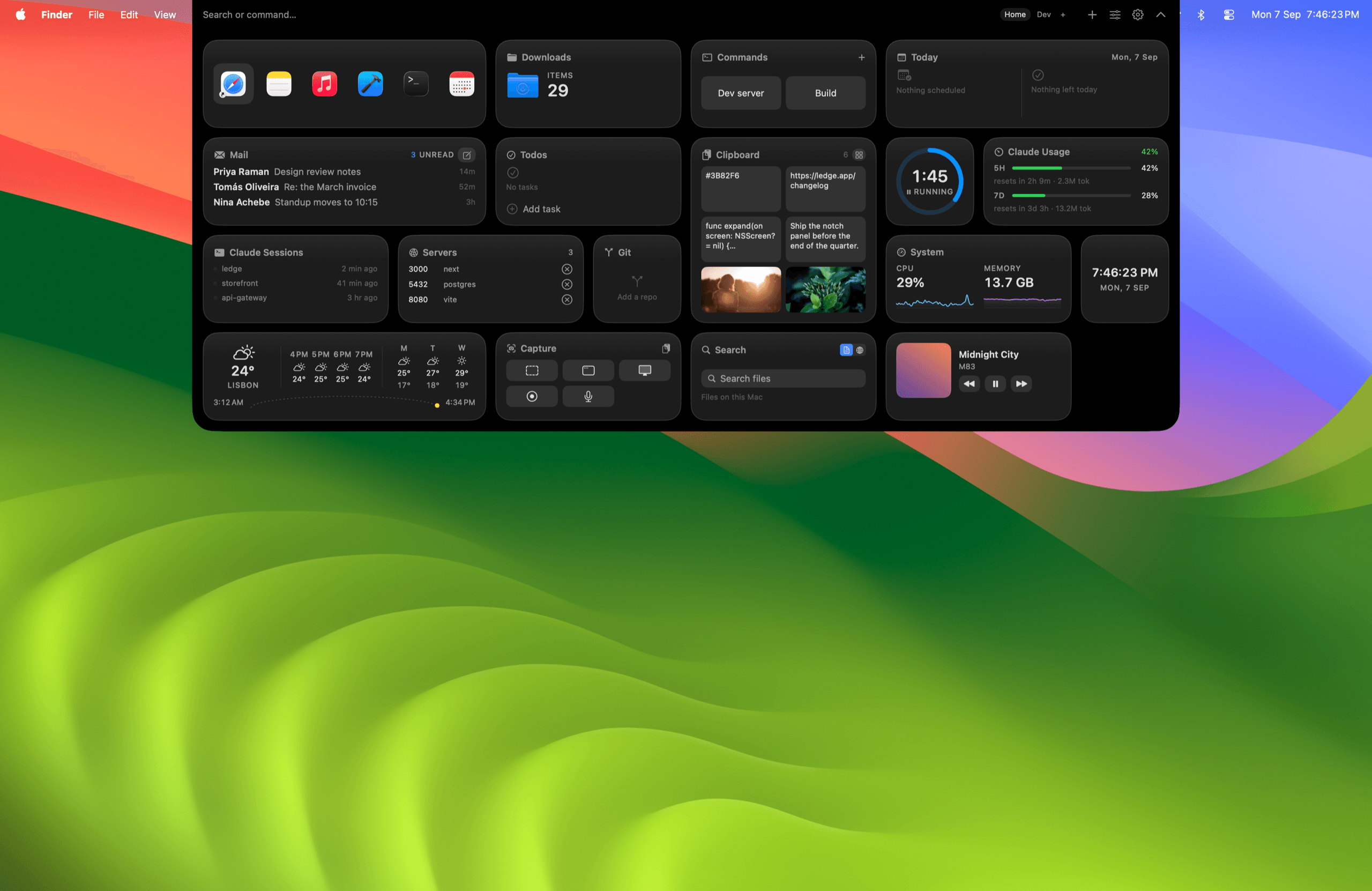

One of us bought a 14-inch MacBook Pro in 2023 and the notch was a low-grade annoyance for a year before anyone did anything about it. Not the shape. The waste. Apple parks a camera bump at the top of the display and hands you a menu bar around it, and that's the whole story. No widgets, no glance, no reason to look up there except for the clock.
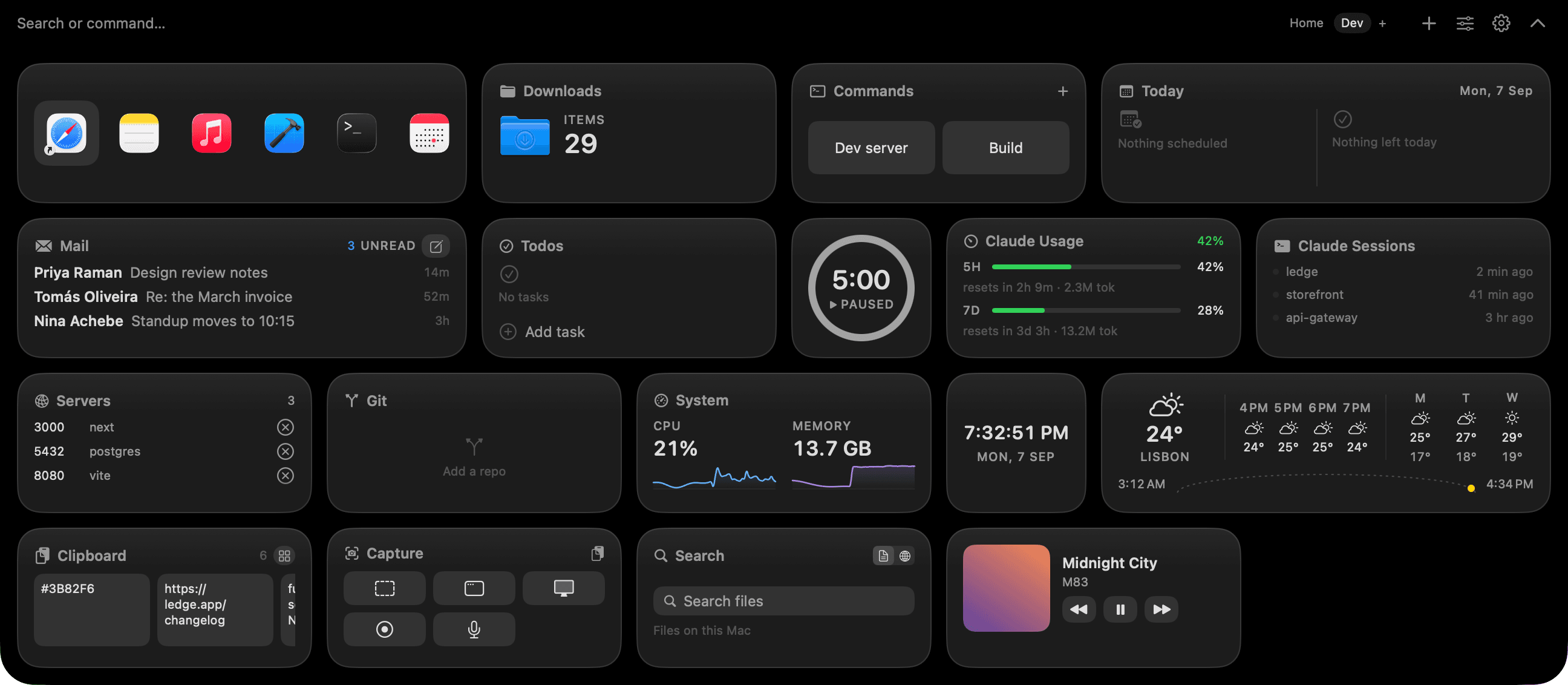
The fix, if you don't mind installing a third-party app, is a widget panel that unrolls when you push the cursor into the notch and collapses when you move away. Calendar, weather, timer, Now Playing, clipboard, screenshot tools, all in one gesture. We ended up building one (Ledge), and there are half a dozen others worth knowing about. Below are the seven jobs the notch is actually good for, plus the free and paid apps that do each one.
Why the notch is worth using
The notch sits at the top center of the display. It's always visible and never covered by a window. A menu-bar app can put a small icon up there. A notch app can put a whole panel there and hide it again the second your cursor moves away.
That "hidden until you look" pattern is the whole point. Menu-bar icons stay on screen forever whether you're looking or not. A notch panel is a drawer. You open it, read the thing, close it.
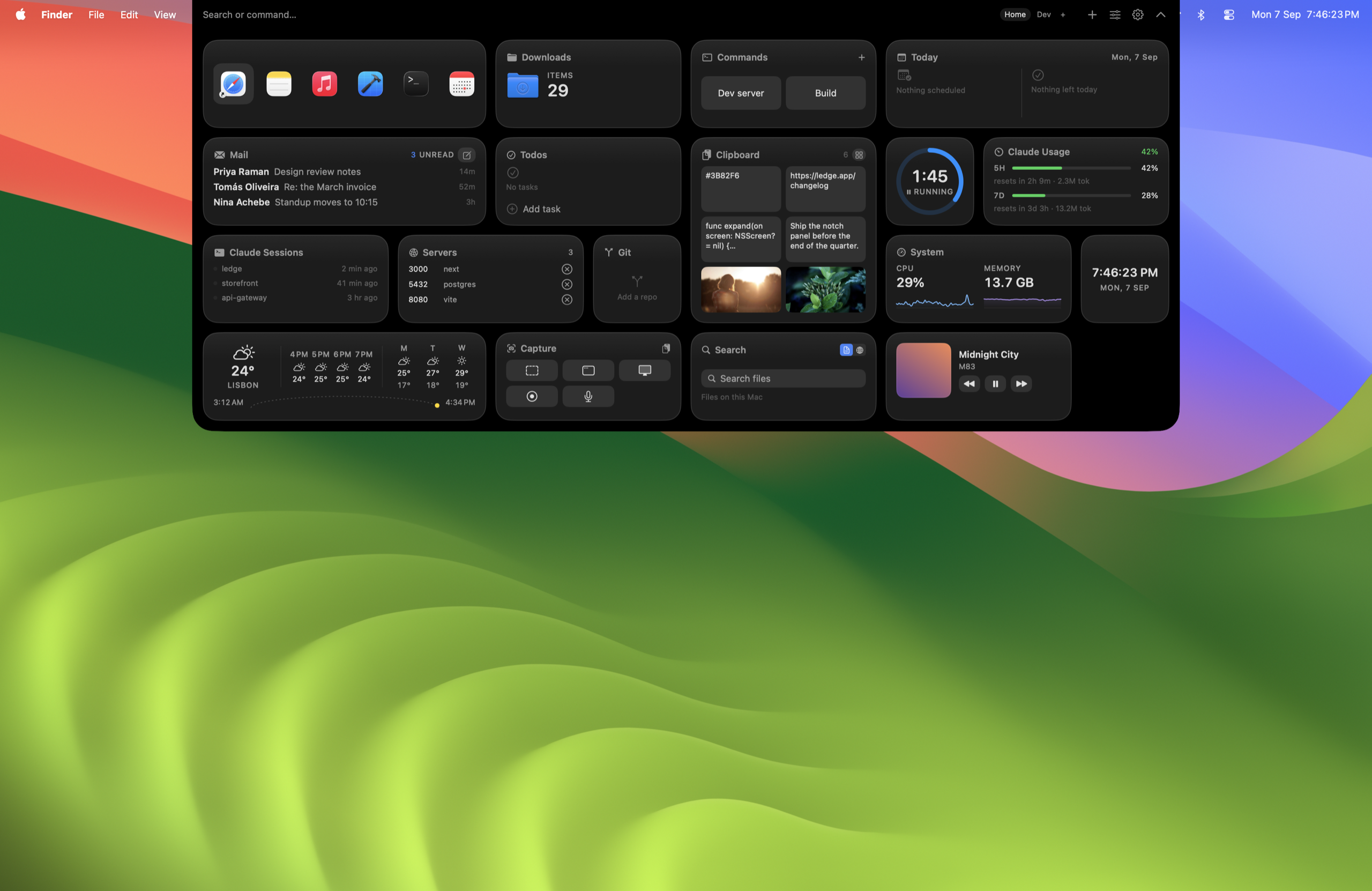 The panel expanded from the notch. Cursor leaves, it collapses.
Every app we've tried in this category shares the same idea: unroll on hover or a shortcut, show a few widgets, collapse. What differs is which widgets you get and how you switch between layouts.
Job 1: Calendar peek
You look up at the clock a hundred times a day. Might as well see the next meeting while you're up there.
The week we finally got around to writing Ledge, one of us missed a 10am call after a heads-down morning in Xcode without opening Calendar once. A calendar widget in the notch shows the next event, the countdown to it, and the rest of today. It reads from macOS Calendar, so iCloud, Google, and Exchange all show through without setting up another account. One glance answers "am I about to be late" without a Cmd-Tab into Calendar or Fantastical.
Job 2: Timer and Pomodoro
Timers fit the notch because you glance to check remaining time and never need a window for it.
25 on, 5 off, repeat. Or 12 minutes for pasta. Same shape. The panel stays collapsed while the timer runs and is one flick of the cursor from the answer. We use it more for cooking than Pomodoros, honestly.
Job 3: Now Playing
Now Playing is where the whole notch-app category started, thanks to Dynamic Island envy.
You get the current track, artist, album art, and playback controls. Skip, pause, scrub. Some apps animate the artwork around the notch as an ambient effect. It's table stakes now; nearly every notch app ships some version of it.
Job 4: Clipboard history
Clipboard history is a good notch fit because it's a list you pick from, not something you configure.
The widget shows the last several things you copied: text, URLs, image thumbnails. Click one to paste. If your notch app has a search bar it doubles as a small launcher for text you reuse. We used Maccy for years before moving the clipboard into Ledge; both approaches work, one just means one fewer app.
Job 5: Weather
Weather in the notch answers a question you're already looking up to check.
Current condition, hourly forecast, 7-day strip. The compact view is one line (temperature and condition) and expands into the full panel when you push in. Location follows the Mac's own setting, so it updates when you travel without any config.
Job 6: Screenshot and screen-capture shortcuts
The notch turns screenshots from a keyboard-shortcut exercise into a one-click widget.
Screenshot widgets put the common capture modes (window, region, full screen, timed, video) behind buttons instead of Cmd+Shift+4 variations. If you take screenshots for docs or bug reports all day it saves the "which modifier was that" pause. macOS's own Screenshot tool still does the actual capture; the widget just fires it.
Job 7: Running-app dock in the notch
A notch-resident dock is a decent replacement for the always-visible macOS Dock if you want the screen space back.
Icons big enough to click, without giving up a strip of screen to a permanent Dock. It pairs well with hiding the macOS Dock (System Settings, Desktop & Dock, Automatically hide and show the Dock).
Apps that do these jobs
The category splits into free open-source, free-with-donation, and paid one-time or subscription. All run on Apple Silicon.
| App | Model | Where it fits |
|---|---|---|
| Boring Notch | Free, open source (GPL-3.0) | Now Playing, calendar, file shelf. Not notarized, so first launch needs a Gatekeeper bypass |
| Notchy | Free, donation-supported | Now Playing, clipboard, Pomodoro, file shelf, AI-usage tracking |
| Itchy | Free | Pomodoro, Now Playing, calendar, mail, clipboard, notes, plus a Swift module SDK |
| Ledge | $25 one-time (1 Mac) | All seven jobs on switchable pages. No account, no server. Our app |
| NotchDrop | Free tier plus paid Pro | File shelf and Dynamic Island effects; free tier covers files, AirDrop, clipboard |
| MediaMate | ~$9.20 one-time (Gumroad) | Replaces the macOS volume and brightness HUDs with iOS-style notch controls |
Ledge is our app and it's paid. If you want the free path, Boring Notch, Notchy, and Itchy are the ones we'd install first. Prices and features change; check each app's site before you buy.
What the notch is not good for
Not everything belongs there. A few things we keep in a real window.
- Long text. Reading a page of anything in a collapsing panel is uncomfortable.
- Deep configuration. Settings screens want room.
- Persistent monitoring. If a number needs to stay visible, a menu-bar icon does that job better than a panel that hides itself.
- Sensitive data on shared screens. A panel that unrolls on hover isn't a lock screen.
What we'd do
If you've never used a notch app, start with the free options for a week. Boring Notch or Notchy will tell you whether the "hover to peek" gesture fits how you work. If it does, and you want git, ports, and switchable pages on top, that's when the paid tools (Ledge included) are worth a look.
FAQ
Do I need a notched MacBook to use these apps? Most work best with one. Some drop a virtual panel from the top edge on non-notch Macs; check the app's own docs.
Which notch app is best for developers? The ones with git, ports, and terminal widgets. Ledge, Notchy, and MacNotch all target this angle in different ways; see our notch apps for developers roundup.
Do notch apps work on external displays? They live on the MacBook display where the notch is. External displays are unaffected.
Do they slow down the Mac? Well-built ones sit in the menu bar and only render when the panel opens. Watch CPU in Activity Monitor if you're unsure.
Are there Apple-made notch widgets? Not as of macOS Sonoma and Sequoia. Apple uses the notch for the camera and menu-bar spacing; the widget-panel behavior is entirely third-party.