Ledge Journal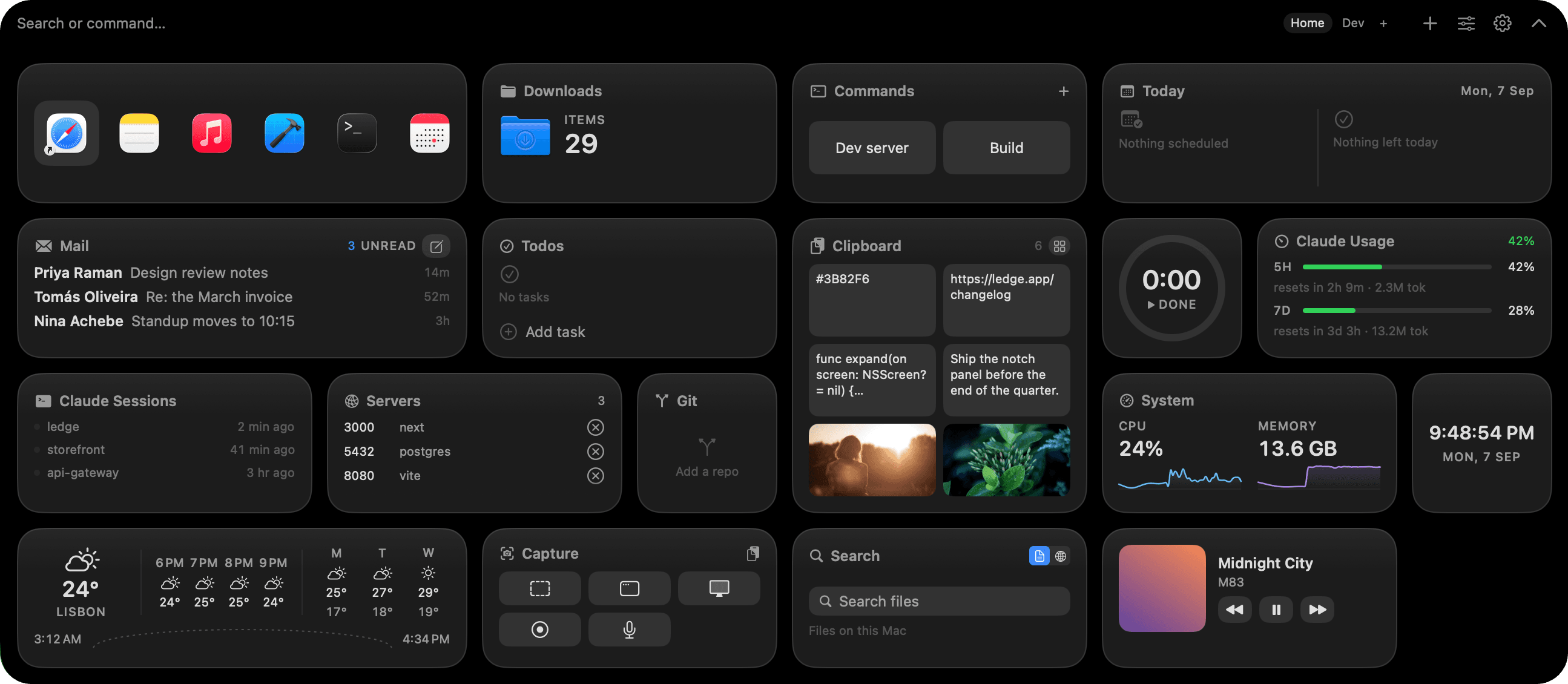

Every time we set up a new Mac we forget half the apps we installed on the old one. This is the list we now keep, so we don't. macOS covers the basics; a small set of third-party apps closes the gaps we hit in the first week: window snapping, clipboard history, a launcher you can actually type into, something to clean up the menu bar, a real terminal. Thirteen apps across seven categories, mix of free and paid, one link per app so you can look at each on the developer's own site.
We're not going to pretend we've tested every option in every category. This is what we use.
How to install apps on a new Mac
Two paths cover almost everything. App Store apps come from the App Store. For direct downloads we use Homebrew with brew install --cask <name>. Homebrew makes reinstalls trivial when you migrate to your next Mac, which matters more than it sounds until you do it once.
For unsigned or notarization-in-progress apps, macOS shows a Gatekeeper warning on first launch. Open System Settings, Privacy & Security, Open Anyway. (Yes, Ledge currently trips this; more on that below.)
Window management
macOS added basic tiling in Sequoia, and it's fine for two-window layouts. A dedicated app is faster and covers thirds.
- Rectangle — free. Keyboard shortcuts for halves, quarters, thirds, fullscreen. We've kept it on every Mac since 2019 and never had a reason to replace it.
- Raycast — free. Also a launcher (below). If you're already going to install Raycast, its window-management extension is enough on its own.
Menu bar and system stats
macOS piles menu-bar icons up until they get hidden behind the notch. One of us hit this at about eight icons on a 14-inch.
- Bartender — paid. Hides and organizes menu-bar icons. Everyone links to it in Mac roundups because it's the incumbent and it works. Ownership changed hands in 2024, worth reading the current reviews.
- iStat Menus — paid. Live CPU, memory, network, disk, sensors, battery. We run it on the desktop Mac we use as a build machine. For the laptop we moved most of this into Ledge's notch panel because it doesn't need to be visible all the time.
Clipboard history
macOS has no clipboard history. This is the single thing we install first on any Mac.
- Maccy — free, open source. Small, fast, keyboard-first. We used it for four years before moving the clipboard into the notch. Still the one we recommend to anyone who wants a standalone tool.
- Paste — paid, subscription. Richer clipboard with pinboards and iCloud sync across devices. Overkill for us; great if you want the fuller version.
Launcher
Spotlight is fine. A real launcher is better: file search, calculations, unit conversions, snippets, window control, extensions for other apps.
- Raycast — free, paid Pro tier. What we use. The extension library covers most third-party apps we care about.
- Alfred — free, paid Powerpack. The long-running alternative. Workflows are its differentiator and they're powerful if you invest the time.
Notes
Apple Notes is genuinely good. We use it for anything we'll re-read in a week. If you outgrow it, two directions.
- Obsidian — free for personal use. Local Markdown files, plugin ecosystem, graph view, cross-platform. What we use for anything longer than a note, because the files are just files.
- Bear — free tier, paid Pro. Native Mac feel, Markdown-based, iCloud sync. The Apple-adjacent option if Obsidian's density isn't for you.
Terminal
Terminal.app works. These are the two people replace it with.
- Ghostty — free, open source. GPU-accelerated, native-feeling, no plugin runtime. We moved to it from iTerm2 in 2024 and haven't looked back. Fast, quiet, does one thing well.
- iTerm2 — free. The classic. Split panes, tabs, hotkey windows, deep customization. Still what a lot of people use.
Notch widgets
The notch is prime screen real estate that Apple leaves to the menu bar. We built one of these because we got tired of the menu bar hiding things behind the camera bump, so treat the recommendation with that in mind.
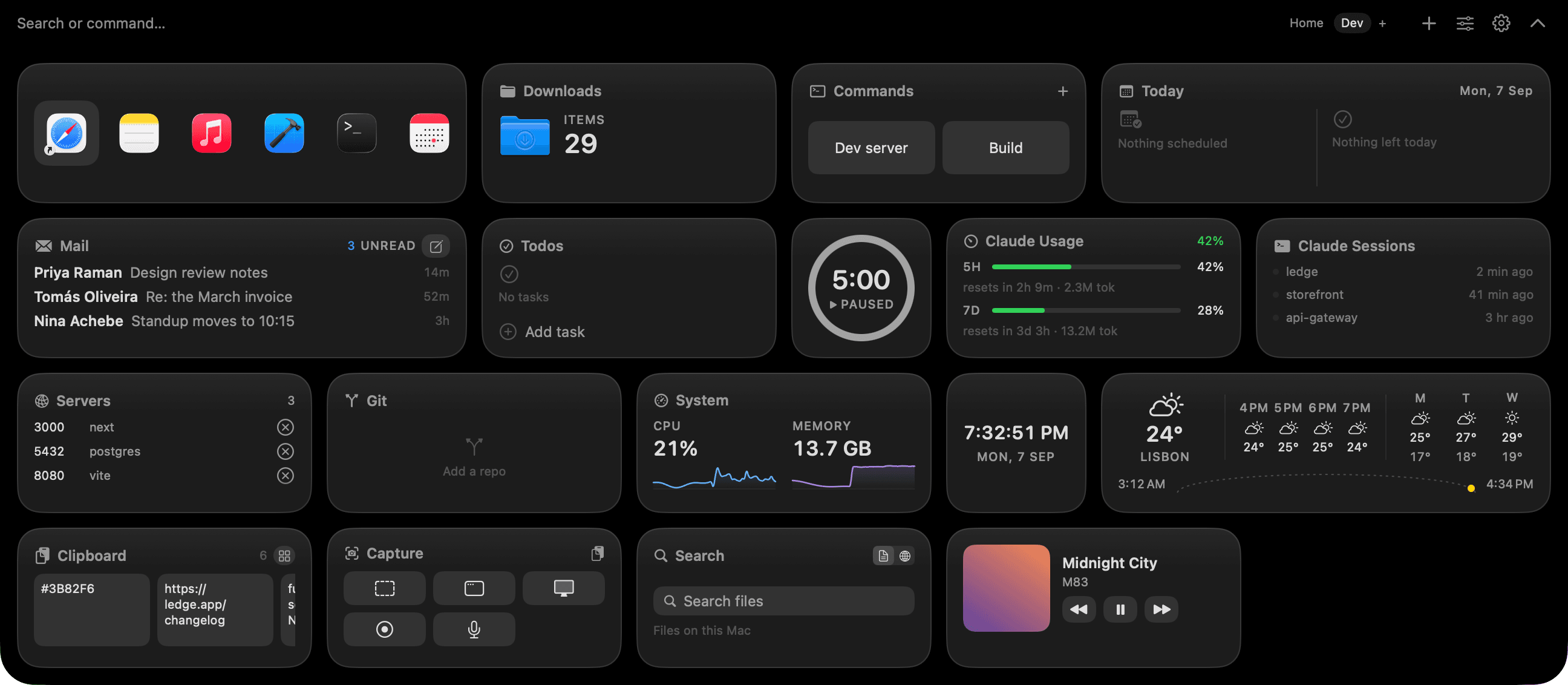
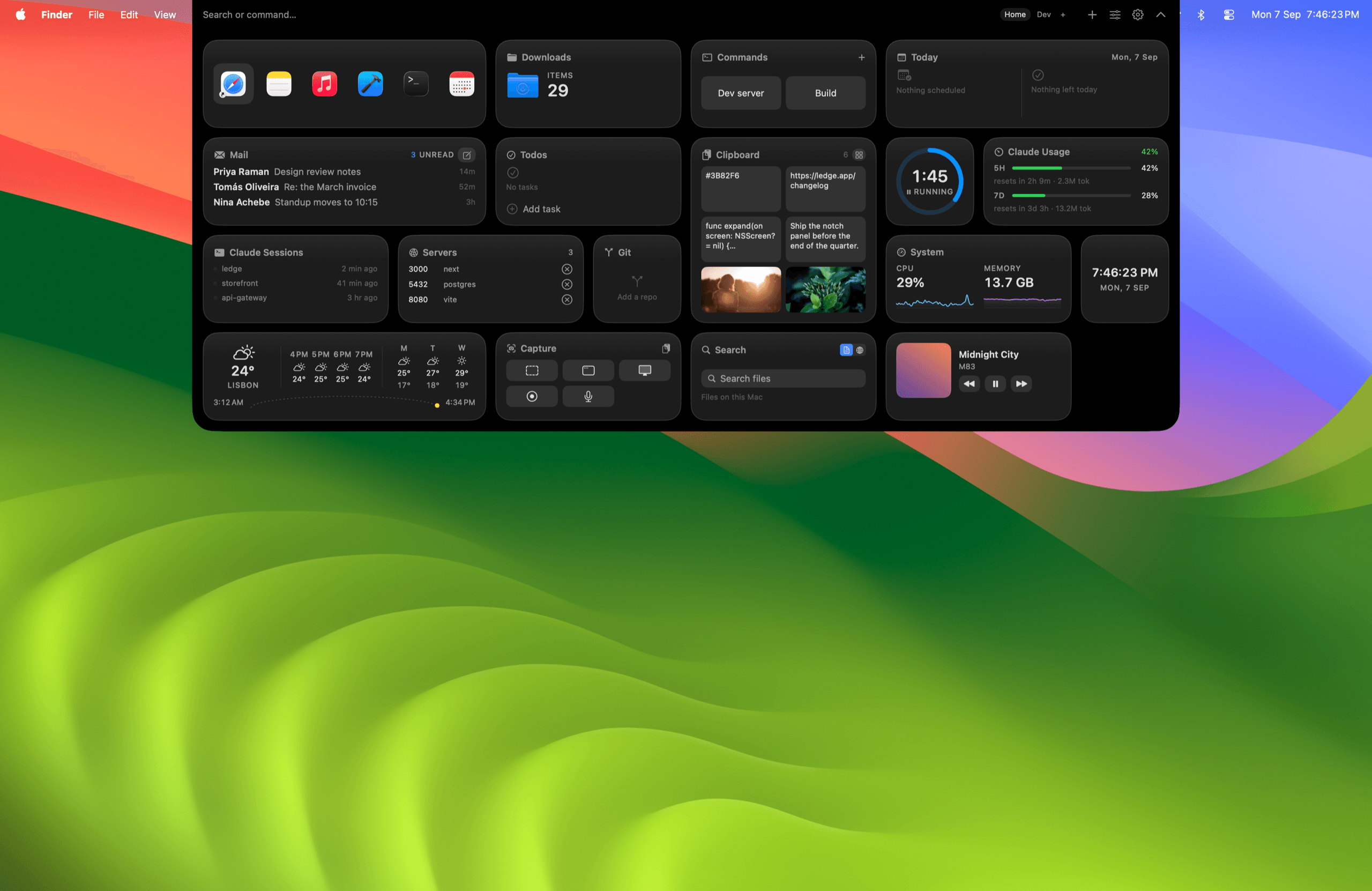
- Ledge — one-time $25 for 1 Mac. Our app. Calendar, weather, Now Playing, clipboard, timer, git status, switchable pages for different contexts. No account, no analytics, no server. First launch trips Gatekeeper because Apple notarization isn't finished yet; the download page walks you through the Open Anyway click. If you want a free path first, Boring Notch is open source and Notchy is free with a donation model, and either will tell you whether the "hover the notch" gesture fits how you work.
Screenshots and small utilities
The last few we install and forget about because they just work.
- CleanShot X — paid, one-time or subscription. Screenshots with annotation, scrolling capture, screen recording, cloud upload. What we use for every screenshot in the Ledge marketing.
- The Unarchiver — free. Opens every archive format macOS can't. Install once, forget it exists until a
.rarshows up. - AppCleaner — free. Uninstalls apps and their config leftovers. Drag an app onto the window, it finds the strays.
A shortlist by budget
| Budget | Pick these |
|---|---|
| Free only | Rectangle, Maccy, Raycast, Obsidian, Ghostty, Homebrew, The Unarchiver, AppCleaner, Boring Notch or Notchy |
| Under $100 total | Add Bartender, add iStat Menus |
| Whatever it takes | Add Paste, Alfred Powerpack, CleanShot X, Ledge, Raycast Pro |
Prices change; check each app's site before you buy.
How we think about paid vs free
For a new Mac, install the free options first. Live with them for two weeks. Buy the paid version only when a specific limitation bites: a clipboard that forgets too fast, a launcher missing the workflow you want, a menu bar that keeps hiding the app you use. It's more disciplined than buying a bundle up front and it almost always costs less.
Two exceptions. Clipboard history and a launcher save time from day one, and even the free versions there are worth installing before you do anything else.
What we left out
This is our starting kit, not a bundle. A few common categories we skipped on purpose.
- Password managers. 1Password and Bitwarden are both good; pick based on whether you want family sharing.
- Browsers. Safari, Chrome, and Arc all work. Browser choice is personal and we're not going to fight anyone about it.
- Design and dev tools. Figma, Xcode, VS Code, Cursor. Install based on your job, not the list.
- Cloud storage. iCloud, Dropbox, Google Drive. Install what your team uses.
FAQ
Do I need all thirteen? No. Rectangle, Maccy, and Raycast on day one covers most of the pain. The rest are for when you hit a specific limitation.
Is Homebrew safe on macOS? Yes, and it's how most Mac developers install command-line tools. Follow the instructions on brew.sh.
Which apps run on Apple Silicon and Intel? All of these run on Apple Silicon. Most still support Intel, but check each site. Some (like Ledge) are Apple Silicon only.
Do these apps slow down the Mac? Well-built menu-bar apps sit idle when you're not looking at them. Check Activity Monitor if a specific app feels heavy after install.
What about backup? macOS has Time Machine built in. Set it up on day one with an external SSD before you install anything else.